

When FLAC Helps Transcription: Privacy First Checklist and Workflow
To transcribe a FLAC file, upload it to a cloud transcription API or run a local speech-to-text model. Either route returns editable text, DOCX or TXT files, and optional SRT/VTT captions with timestamps, typically within minutes for files under an hour. Choose cloud processing for speed, language coverage, and speaker diarization at scale; choose a local tool when the recording is sensitive or the archive is large. Some platforms let you benchmark models before committing to either path.
TL;DR:
- Transcribing FLAC files is quick and reliable, especially in noisy environments or for archival purposes, but often offers little accuracy benefit over MP3 in clean recordings.
- Using high-quality recording practices, like close mic placement and noise reduction, significantly impacts transcription accuracy more than the choice of file format.
- Cloud transcription services process large batches faster and support more languages, but local tools are preferable for sensitive recordings and smaller projects.
- Exporting transcriptions in formats like SRT or VTT is ideal for subtitles, while DOCX or TXT suits editing, with consistent speaker labels across formats being crucial.
- Converting MP3 files to FLAC does not improve transcription accuracy since both formats contain the same audio information; choose the format based on archival needs.
Table of Contents
- How Do You Turn a FLAC File Into Editable Text?
- Does FLAC Improve Transcription Accuracy Over WAV or MP3?
- Checklist to Maximize Transcript Quality From FLAC Files
- Which Export Format Should You Choose?
- Should You Transcribe FLAC Locally or in the Cloud?
- Who Actually Benefits From Transcribing FLAC Files?
- What Codec-Related Issues Come Up With FLAC Transcription?
- How Should You Edit and Proofread a FLAC-Sourced Transcript?
- How Does FLAC Transcription Fit Into a Video or Subtitle Workflow?
- Author Perspective and Practical Recommendation
- OpenTranscription: One API for Every FLAC Transcription Job
- Sources
- FAQ
How Do You Turn a FLAC File Into Editable Text?
Getting from raw audio to a usable transcript follows the same basic sequence whether you use a cloud API or a desktop app. The details differ by platform, but the workflow below applies almost universally.
- Check the file first. Confirm whether the FLAC is mono or stereo and note its sample rate. A stereo file with two speakers on separate channels transcribes more cleanly than a single mono mixdown when channel separation is available.
- Upload or run locally. Drag the file into your chosen transcription tool, select the source language, and turn on speaker diarization if the recording has more than one voice.
- Wait through processing. Most services process audio faster than real time. A one-hour interview typically finishes in a few minutes on cloud infrastructure, longer on local hardware without a dedicated GPU.
- Review the draft. Scan for low-confidence words, misattributed speakers, and homophone errors, which cluster around proper nouns and technical jargon.
- Export. Pick DOCX or TXT for editing, SRT or VTT for captions, or JSON for developer workflows that need word-level timestamps.
Pro Tip: Run a 30-second test clip before committing a two-hour FLAC archive to any single model. It reveals accent handling and diarization quality without burning your full processing budget.
Does FLAC Improve Transcription Accuracy Over WAV or MP3?
Rarely, and not for the reason most people assume. Most transcription engines resample incoming audio down to roughly 16 kHz mono before running it through a model, which means the extra fidelity FLAC preserves above typical speech frequencies often produces negligible accuracy gains over a well-encoded MP3. A clean 128 kbps mono recording of one person talking into a decent microphone will transcribe about as well in MP3 as it will in FLAC.
Lossless formats earn their keep in specific, harder conditions:
- Noisy environments where background hiss or hum competes with speech.
- Multi-speaker recordings where the model needs to separate overlapping voices.
- Archival projects where the audio itself, not just the transcript, needs to survive decades of storage.
In those scenarios, WAV or FLAC can produce a measurable accuracy advantage over compressed formats, because the model has more signal to work with when the recording is already degraded by noise or crosstalk.
The practical takeaway: transcribe the original file you have. Converting an existing MP3 up to WAV or FLAC afterward does not restore detail the compression already discarded, and it adds a step that helps nothing.
Checklist to Maximize Transcript Quality From FLAC Files
Recording conditions move accuracy far more than file format ever will. Work through these in roughly this order of impact:
- Record close to the speaker. A few inches of extra mic distance introduces room echo that confuses word boundaries.
- Normalize audio levels so quiet speakers aren’t drowned out by louder ones in the same file.
- Apply noise reduction before transcription rather than after; cleanup generally moves accuracy more than switching containers or bitrates.
- Split very long recordings into shorter segments, which keeps diarization more consistent and makes review less punishing.
- Use separate channels per speaker when your recording setup allows it. Channel assignment and short segments improve speaker separation more reliably than format choice alone.
- Lean on confidence scores and timestamps to triage manual edits instead of reading every line with equal scrutiny.
- Pre-process locally before sending to the cloud when the content is sensitive: strip noise and normalize levels on-device, then upload only the cleaned audio.
A tool like Vector DSP’s guidance on AI audio enhancement is worth reading if you’re preparing field recordings with inconsistent gain staging or persistent background noise.
Which Export Format Should You Choose?
The right export depends entirely on what happens to the transcript next, not on the source audio format.
- SRT or VTT for anything headed to video, since both formats carry timestamps that sync directly with caption tracks in editing software.
- DOCX or TXT when a human needs to read, mark up, or publish the text, particularly for interviews, research transcripts, or legal records.
- JSON for developer workflows that need word-level timestamps and confidence scores to feed into a downstream application.
Keeping speaker labels consistent across every export matters more than most people expect. If “Speaker 1” in the DOCX becomes “Speaker A” in the SRT, anyone cross-referencing the two formats loses track of who said what. Confirm your tool locks labels before generating multiple export types from the same job.
Should You Transcribe FLAC Locally or in the Cloud?
Local processing keeps the audio on your device. Local tools can read FLAC natively without an upload step, which sidesteps file-size caps and avoids sending sensitive recordings anywhere outside your own machine. That makes local transcription the sounder default for legal depositions, medical interviews, or any archive where confidentiality outranks convenience.
Cloud services win on scale. They process large batches faster, offer a wider bench of models to choose from, and typically support far more languages than a single local model can handle.
- Use local transcription for one sensitive file or a modest personal archive where privacy outweighs speed.
- Use cloud transcription for high-volume batch jobs, multilingual content, or when you need diarization tuned to a specific model.
- Consider a hybrid workflow: clean and normalize audio locally, then send the processed segments to a cloud model for the heavy transcription work. This also matters for cost, since many online tools cap free uploads by minutes or file size, while local tools without a per-minute meter suit long recordings better.
Who Actually Benefits From Transcribing FLAC Files?
Not every project needs lossless audio, but some clearly do.
- Archival oral histories, legal depositions, and research interviews should keep FLAC as the master file, since the format preserves bit-perfect audio at roughly half the storage size of WAV, which matters when a recording has to remain usable decades later.
- Podcasters and studio sessions benefit from FLAC when the audio itself will be edited later, not just transcribed once and discarded.
- Field recordings and multi-speaker panels gain the most from FLAC when overlapping voices or ambient noise make separation genuinely hard for the model.
For a quick voicemail or a single clean interview, FLAC is unnecessary. For anything you’ll revisit, edit, or need to preserve, it’s the safer default.
What Codec-Related Issues Come Up With FLAC Transcription?
FLAC itself rarely causes transcription errors directly, since it’s a lossless codec that hands the model the same waveform a human would hear. The friction shows up elsewhere. Some older transcription tools and browser-based uploaders don’t parse FLAC’s container metadata correctly, which can cause a file to silently fail an upload instead of returning a clear error message. Always confirm your chosen tool lists FLAC support explicitly rather than assuming universal compatibility.
A second, subtler issue involves variable sample rates. FLAC supports a wide range of sample rates and bit depths, and a file recorded at 96 kHz or 24 bit sometimes triggers unnecessary resampling delays or format warnings in tools tuned mainly for 16 bit, 44.1 kHz consumer audio. This rarely affects accuracy, but it can slow processing on tools that weren’t built with high-resolution archival files in mind.
The third recurring problem is file size. FLAC files, while smaller than WAV, still run considerably larger than MP3 at equivalent length. Long-form recordings, multi-hour panel discussions or full-length depositions, can bump against upload limits on tools designed around shorter consumer clips. Checking a service’s file-size ceiling before starting a batch job saves the frustration of a failed upload after a long wait.
None of these are accuracy problems. They’re friction points in tooling, not flaws in the format.
How Should You Edit and Proofread a FLAC-Sourced Transcript?
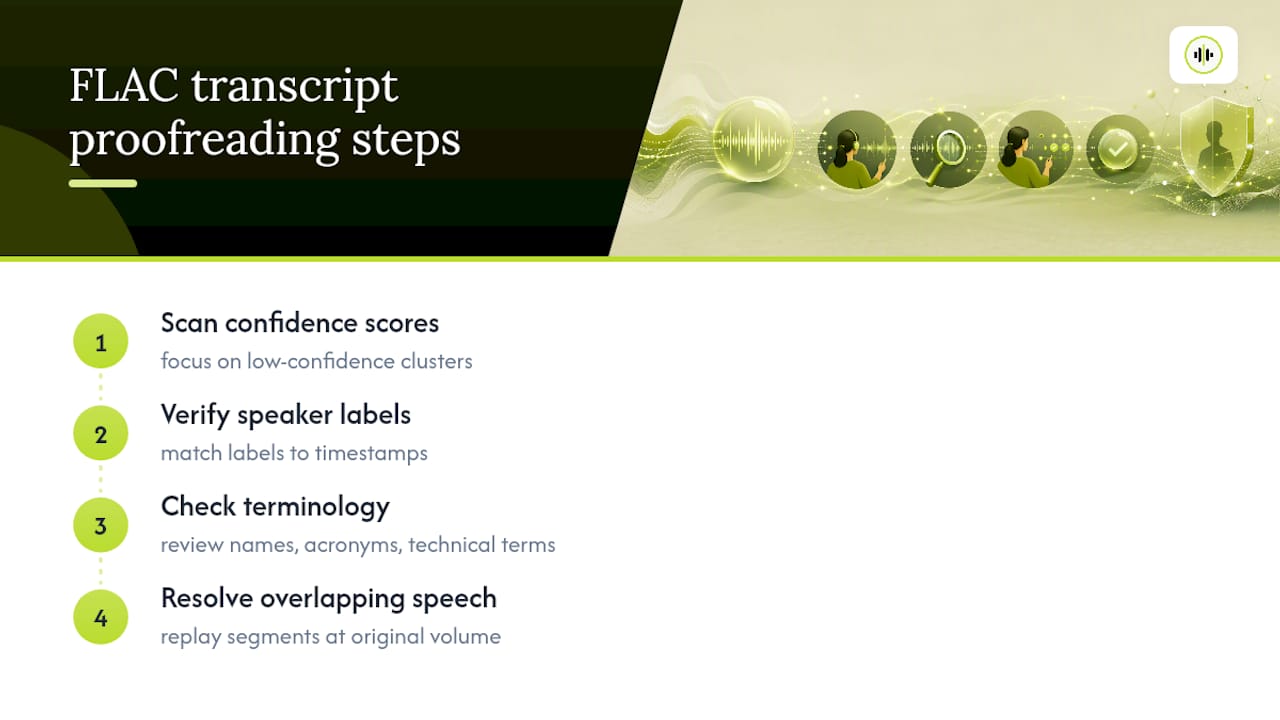
Editing a transcript pulled from a FLAC master follows the same logic as any transcript, but the higher fidelity source gives you more to work with during review. Start with the confidence scores most tools attach to each word or phrase. Low-confidence flags cluster around proper nouns, technical jargon, and regional accents, so scanning those first catches the errors most likely to survive a casual read-through.
Cross-check speaker labels against timestamps, especially in multi-speaker panels or interviews where two people talk over each other. Diarization models occasionally split one speaker’s sentence across two labels when there’s a pause, or merge two speakers into one label during rapid back-and-forth exchanges. Because FLAC preserves the full dynamic range of the original recording, you can often replay short segments at their true volume to resolve ambiguous attributions instead of straining to hear a compressed, flattened mix.
Homophones and technical terms deserve a second pass on their own. Names, acronyms, and specialized vocabulary from research interviews or legal proceedings are exactly where automatic transcription tends to guess wrong, even with excellent audio. Read the transcript once for meaning and once purely for terminology accuracy. If the recording included overlapping speech, listen to those specific timestamps directly rather than trusting the model’s best guess at who said what.
How Does FLAC Transcription Fit Into a Video or Subtitle Workflow?
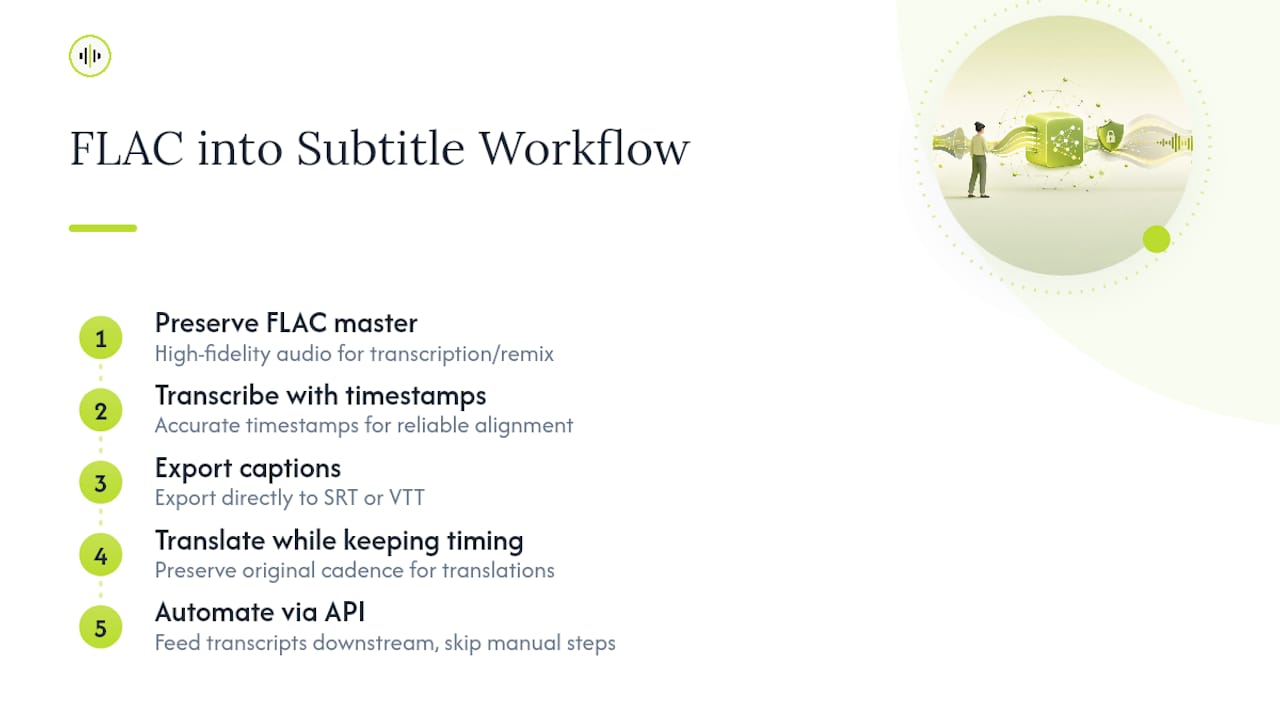
FLAC transcription slots naturally into post-production pipelines that already treat audio as a separate, higher-fidelity asset from the final video mix. Documentary editors, podcast-to-video converters, and archival researchers often record or extract FLAC specifically because it preserves the master audio quality needed for both transcription and any later remixing or sound design work.
Once you have a transcript with accurate timestamps, generating subtitles becomes largely mechanical. Export directly to SRT or VTT, then import that file into whatever video editor or captioning tool you’re using. Because the FLAC source carries no compression artifacts, timestamp-to-audio alignment tends to be more reliable than it is with heavily compressed formats where transient sounds can shift slightly during encoding.
Multi-language subtitle generation adds another layer. A well-timestamped transcript from a FLAC master becomes the baseline for translation into other languages, and keeping the original timing intact matters enormously here since translated subtitles need to match the same speech cadence as the source. Research teams working with multilingual interview archives frequently keep the FLAC transcript as a reference file precisely because its timestamps stay dependable across every derived translation.
For teams integrating this into an ongoing pipeline rather than a one-off project, an API-based approach removes the manual upload-and-download cycle entirely, feeding transcripts directly into whatever subtitle or editing software runs downstream.
Author Perspective and Practical Recommendation
Skip the format debate. Spend that energy on microphone placement and noise reduction, since recording conditions move accuracy more than any codec choice. Keep FLAC for archives you’ll revisit; transcribe what you have without re-encoding it. Model benchmarking helps you pick the right tradeoff between cost, speed, and accuracy for your actual audio, not a hypothetical one.
— Benjamin
OpenTranscription: One API for Every FLAC Transcription Job
A single-file online converter works fine for one interview. It stops working once you’re processing hundreds of FLAC archives a week, need speaker diarization across a dozen languages, or want to compare how three different models handle the same noisy panel recording before committing to one. Such a platform can solve that scaling problem directly.
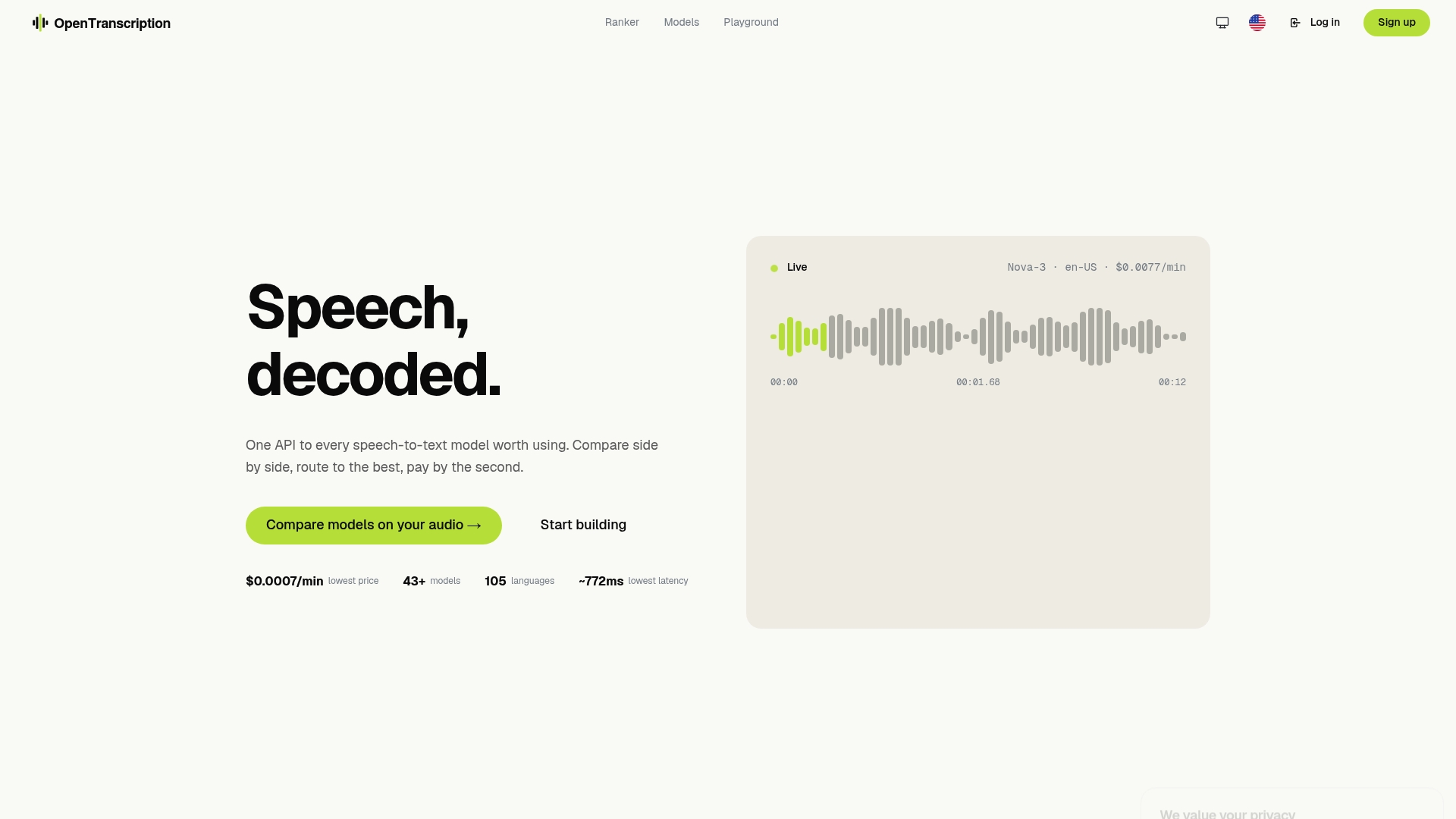
The platform gives you API access to more than 40 transcription models, benchmarked side by side on cost, speed, and accuracy, with support for real-time streaming, speaker identification, and over 105 languages. Instead of guessing which model handles your FLAC files best, you can compare them directly using structured transcripts that include word-level timestamps and confidence scores. Billing runs per second of audio processed, with no subscription commitment.
If you’re building a pipeline rather than converting one file, browse the model catalog to see how different models trade off speed against accuracy for your specific audio conditions, then start integrating through the API documentation.
Sources
FAQ
Is FLAC the highest-quality audio format?
FLAC is lossless, meaning it preserves the full original recording without the data loss that compressed formats like MP3 introduce. It isn’t inherently “higher quality” than uncompressed WAV, since both preserve identical audio detail; FLAC simply achieves that fidelity at roughly half the file size of WAV.
What is the best program to transcribe audio to text?
The best choice depends on volume and privacy needs: local apps suit sensitive or long archives without upload limits, while an API platform like OpenTranscription suits developers who need to benchmark multiple models for cost, speed, and accuracy at scale.
What is the best FLAC converter?
There’s no single universal answer, since the right converter depends on whether you need speed, batch processing, or lossless preservation during conversion. For transcription purposes specifically, converting FLAC to another format rarely helps, since the original file already gives a transcription model everything it needs.
What are the disadvantages of FLAC?
FLAC files run considerably larger than MP3 at the same length, which can strain storage and slow uploads on tools with strict file-size limits. Some older or consumer-focused transcription tools also handle FLAC’s variable sample rates and container metadata less reliably than they handle standard MP3 or WAV files.
Does converting MP3 to FLAC improve transcription accuracy?
No. Re-encoding a compressed file into a lossless container does not restore the detail already discarded during compression, so the resulting transcript quality stays the same as transcribing the original MP3 directly.