
Google Meet Transcription for Developers: Batch and Real-Time Patterns

For dependable, scalable Google Meet transcription, the recommended approach is to record audio to a cloud storage bucket and process it through an enterprise transcription API. For latency-sensitive use cases, a streaming API over WebSocket is the correct path. Native Google Meet Docs transcripts are useful for end users but brittle for automation and should not serve as the primary data source in production pipelines. OpenTranscription supports both patterns with 40+ models, per-second billing, and HIPAA-relevant controls that matter for U.S. enterprise deployments.
Table of Contents
- Which Google Meet transcription pattern fits your use case?
- What does the architecture look like for each pattern?
- How do you implement batch and streaming ingestion step by step?
- How do you select and benchmark transcription models?
- What security and compliance settings should you configure?
- How do you estimate and control transcription costs?
- How do you test and monitor transcript quality in production?
- How do you diagnose and fix common transcription problems?
- Recommended next steps with OpenTranscription
- Key Takeaways
- What teams consistently underestimate about transcription at scale
- Useful sources for implementation and compliance
- OpenTranscription: benchmark-driven transcription for your Meet pipeline
Which Google Meet transcription pattern fits your use case?
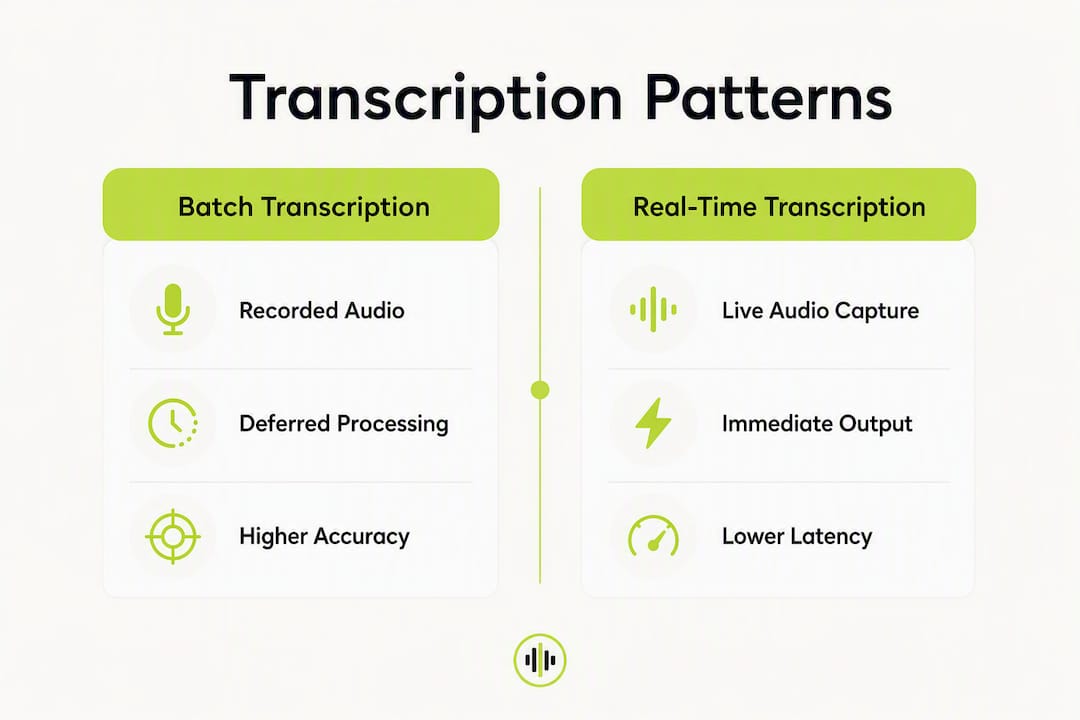
Two integration patterns cover the majority of production requirements.
Record-then-transcribe (batch): The meeting is recorded to Google Drive or a cloud storage bucket, the audio is extracted and normalized, and a transcription API processes the file asynchronously. This pattern suits high-volume pipelines, compliance archiving, and workflows where a few minutes of processing delay is acceptable. Batch processing supports large file collections in a single request and is typically billed per second of audio processed.
Real-time streaming: An edge agent or WebRTC capture layer streams audio frames to a transcription API via WebSocket, returning partial and final transcripts with sub-second latency. This pattern is required for live captions, real-time coaching, or any workflow that must act on speech before the meeting ends.
Decision criteria to consider:
- Latency: Streaming if you need transcripts in under two seconds; batch if post-meeting delivery is acceptable.
- Volume and concurrency: Batch scales more predictably for high-concurrency environments; streaming requires careful connection management.
- Compliance and retention: Both patterns can satisfy HIPAA requirements when audio is encrypted at rest and in transit, but batch pipelines give more control over where audio lands before processing.
- Cost sensitivity: Batch jobs on lower-cost models are generally cheaper per minute than streaming on high-accuracy models.
When to use native Meet transcripts: convenience-only scenarios where a human reads the output and no downstream system depends on it. Native transcripts are saved as Google Docs in the organizer’s Drive and can take up to 24 hours to appear, which makes them unsuitable for any pipeline requiring timely or structured data.
Pro Tip: If your pipeline must handle multilingual meetings, note that the transcript language follows the host’s Meet language setting. Either enforce a standard language in Workspace or implement automatic language detection before routing audio to a model.
What does the architecture look like for each pattern?
Batch pipeline components
| Component | Role |
|---|---|
| Capture agent / Meet bot | Joins the meeting and triggers Drive recording or captures raw audio |
| Cloud storage (Drive or GCS/S3) | Stores raw audio or video files post-meeting |
| Ingestion service | Polls storage, normalizes audio (format, sample rate, channels), enqueues jobs |
| Transcription API | Processes audio files; returns structured JSON with word-level timestamps |
| Post-processing service | Applies diarization, punctuation restoration, confidence filtering |
| Index / data store | Stores final transcripts, speaker labels, and metadata for search |
| Access control layer | Enforces role-based access; maps Drive permissions to application roles |
Streaming pipeline components
The streaming path replaces the storage and ingestion layers with a real-time capture module. A WebRTC tap or RTMP relay feeds audio frames to a WebSocket endpoint on the transcription API. Partial transcripts arrive continuously; the final transcript is emitted on end-of-utterance or session close. Post-processing (diarization, punctuation) runs either in-stream or as a lightweight pass on the finalized segments.
Pro Tip: Capture audio as lossless PCM (16-bit, 16 kHz mono minimum; 48 kHz stereo preferred) before any codec compression. Lossy formats like MP3 at low bitrates degrade diarization accuracy and timestamp alignment, particularly for overlapping speakers.
How do you implement batch and streaming ingestion step by step?
Batch integration checklist
- Enable cloud recording in the Google Workspace Admin console and confirm Drive storage location.
- Configure a Meet bot or service account to join meetings and trigger recording.
- After the meeting ends, export audio from the recorded file using ffmpeg:
ffmpeg -i meeting.mp4 -vn -acodec pcm_s16le -ar 16000 -ac 1 audio.wav - Upload
audio.wavto your cloud storage bucket with server-side encryption enabled. - Enqueue a transcription job via HTTP POST to the transcription API:
POST /v1/transcribe Content-Type: application/json {"audio_url": "gs://bucket/audio.wav", "model": "selected-model-id", "diarization": true, "word_timestamps": true} - Poll the job endpoint or consume a webhook notification for completion.
- Store the structured JSON response (words, timestamps, speaker labels, confidence scores) in your data store.
- Implement retry logic with exponential backoff for 5xx responses; log
job_id,model_id,audio_duration_seconds, andstatusfor every attempt.
Streaming integration checklist
- Open a WebSocket connection to the streaming endpoint before or at meeting start.
- Send audio frames as binary messages at the configured sample rate (typically 16 kHz PCM).
- Handle
partial_transcriptevents to update live captions; handlefinal_transcriptevents to commit segments to storage. - Implement backpressure: if the WebSocket send buffer exceeds a threshold, drop or buffer frames locally rather than blocking the capture thread.
- On session close, send an end-of-stream signal and wait for the final segment flush.
- Log session ID, frame count, drop rate, and end-to-end latency per segment for monitoring.
How do you select and benchmark transcription models?
Accuracy is not a monolith: a model that leads on clean studio audio may underperform on a noisy conference call with five speakers and mixed accents. Benchmarking against your own representative audio is the only reliable way to choose.
Benchmark checklist:
- Assemble a test set of 20–50 audio clips drawn from real or synthetic meeting recordings, covering varied accents, background noise levels, and speaker counts.
- Produce ground-truth transcripts for each clip (human-verified).
- Run each candidate model and collect: Word Error Rate (WER), Character Error Rate (CER), median end-to-end latency, cost per minute, diarization accuracy, and timestamp alignment error.
- Store results in a structured format keyed by
model_id,clip_id, andtest_dateto track regressions over time.
Model selection by use case:
- Compliance / legal archiving: Prioritize WER and diarization accuracy over cost; use a high-accuracy model even at higher per-minute rates.
- Meeting note-taking: Balance WER and cost; a mid-tier model typically delivers acceptable accuracy at lower spend.
- Live captions: Prioritize latency; accept a modest WER increase for sub-500ms first-word latency.
OpenTranscription’s model catalog profiles 40+ ASR models with cost, speed, and accuracy data, making it practical to run comparative benchmarks without building separate API integrations for each provider.
What security and compliance settings should you configure?
Google Workspace Admin settings directly affect what your pipeline can access and how transcripts are shared.
- Transcription availability: Admins control whether transcription is enabled per organizational unit; changes propagate within 24 hours.
- Drive storage location: Confirm transcripts land in a Drive location subject to your data residency policy, not a default personal Drive.
- Access controls: By default, edit access is granted to the organizer, host, and transcriber; for meetings with fewer than 200 invitees, all invitees in the host’s organization receive edit access. Restrict sharing before exposing transcripts to downstream systems.
- Consent: Record a verbal consent notice at meeting start or display a banner; log consent events with timestamps.
- Encryption: Encrypt audio files at rest (AES-256 or equivalent) and enforce TLS 1.2+ in transit for all API calls.
- Audit logging: Enable Workspace audit logs for Drive access events on transcript files; retain logs per your data governance policy.
- HIPAA applicability: If calls contain protected health information (PHI), the transcription API vendor must be a HIPAA Business Associate. Confirm BAA availability before processing PHI through any external API, including OpenTranscription.
Compliance note: Default Workspace settings can expose transcripts to all meeting invitees inside the host domain. Review and tighten sharing settings before connecting any external integration.
How do you estimate and control transcription costs?
Most enterprise transcription APIs bill per second of audio processed, with streaming and batch rates that differ by model tier. A straightforward estimation formula:
Estimated monthly cost = (avg. meeting duration in minutes) × (meetings per month) × (cost per minute for selected model) × (concurrency multiplier if parallel jobs)
Add 10–15% overhead for storage, post-processing compute, and retry traffic. Optimization levers:
- Selective recording: Only transcribe meetings flagged as requiring a record (e.g., external calls, compliance-scoped meetings).
- Audio trimming: Strip silence and pre/post-meeting dead time before submitting; most APIs bill on submitted duration.
- Model tiering: Route routine internal syncs to a lower-cost model; route compliance-critical calls to a high-accuracy model.
- Caching: For recurring content (e.g., standard intros or disclaimers), cache the transcript segment rather than re-processing identical audio.
How do you test and monitor transcript quality in production?
A monitoring pipeline should track five core metrics continuously: WER on sampled production audio, median end-to-end latency, fraction of words below a confidence threshold, speaker-attribution error rate, and streaming session uptime.
Sample test pipeline:
- Schedule nightly benchmark jobs against a fixed golden test set; alert if WER increases by more than a defined threshold relative to the prior run.
- Run synthetic noise injection tests weekly to verify model robustness to degraded audio.
- Deploy a canary job for each new model version before routing production traffic.
Monitoring checklist: maintain dashboards for all five metrics, set automated alerts for WER spikes and latency regressions, retain test-result records for at least 90 days, and re-benchmark whenever the underlying model version changes.
How do you diagnose and fix common transcription problems?
- Low signal-to-noise ratio (SNR): Apply noise suppression at the capture layer (WebRTC’s built-in noise suppression or a pre-processing filter); increase audio bitrate if using a lossy codec.
- Overlapping speech / poor diarization: Use multi-channel capture when possible (separate audio tracks per speaker); if single-channel only, enable forced-turn diarization in the API request.
- Missing or misaligned timestamps: Confirm the model supports word-level timestamps and that the submitted sample rate matches the audio file’s actual sample rate. A mismatch here is the most common cause of timestamp drift.
- Intermittent API failures: Implement exponential backoff with jitter (initial retry at 1s, cap at 60s, max 5 attempts); for streaming, reconnect and replay the last buffered frames on disconnect.
- Fallback strategy: If the primary API is unavailable, route to a secondary model tier or degrade gracefully to Google Meet’s native subtitles for live sessions while queuing audio for batch processing once the API recovers.
Pro Tip: Log raw audio samples (short clips, not full recordings) alongside sample_rate, channel_count, model_id, and confidence_distribution for every failed or low-confidence job. This telemetry makes root-cause analysis tractable without replaying entire meetings.
Recommended next steps with OpenTranscription
OpenTranscription is a benchmarking and routing platform that gives developers access to 40+ transcription models covering real-time streaming and batch workflows across 105+ languages, with per-second billing and no subscription requirement. Structured transcripts include word-level timestamps, confidence scores, and speaker labels suitable for enterprise data pipelines.
Implementation checklist:
- Validate your audio capture pipeline (format, sample rate, channel count).
- Run a benchmark on OpenTranscription against your representative meeting audio.
- Select a model based on your WER, latency, and cost targets.
- Deploy to production with retry logic, monitoring, and access controls in place.
Run your first benchmark at opentranscription.io/en to compare models on your own audio before committing to a production configuration.
Key Takeaways
Reliable Google Meet transcription at scale requires ingesting raw audio through an enterprise API rather than depending on native Docs transcripts, which can take up to 24 hours to process and are not structured for downstream automation.
| Point | Details |
|---|---|
| Prefer raw audio ingestion | Native Meet Docs transcripts are delayed up to 24 hours and are not structured for automated pipelines. |
| Batch vs. streaming choice | Use batch for high-volume archiving; use streaming when latency must stay under two seconds. |
| Benchmark before deploying | Measure WER, latency, and cost per minute across candidate models on your own representative audio. |
| Lock down access controls | Default Workspace settings grant edit access to all meeting invitees; restrict sharing before connecting external integrations. |
| OpenTranscription for routing | OpenTranscription’s model catalog and per-second billing let you benchmark 40+ models and route jobs by cost, accuracy, or latency without separate provider integrations. |
What teams consistently underestimate about transcription at scale
The operational failure mode most teams hit is not a bad model choice. It is the assumption that the pipeline will stay stable once it is deployed. Drive permission changes, Workspace policy updates, and model version bumps all happen without notice, and any one of them can silently degrade transcript quality or break access entirely.
The second underestimated problem is audio diversity. A benchmark run on clean recordings from a single office will not predict performance on a distributed call with participants on mobile, in noisy environments, or speaking with regional accents. Teams that skip diverse test sets end up debugging production failures that a broader benchmark would have surfaced in a day.
Treating transcription as a data pipeline component, with the same monitoring, alerting, and graceful degradation logic applied to any other critical service, is the operational posture that separates teams that ship reliably from those that spend engineering cycles on reactive fixes.
Useful sources for implementation and compliance
- Google Meet transcript storage and access: canonical reference for where transcripts are saved in Drive, the 24-hour processing window, and default permission behavior.
- Turn meeting transcription on or off (Workspace Admin): Admin console configuration for enabling transcription per organizational unit and propagation timing.
- Choose automatic meeting artifact settings: controls transcript language behavior tied to the host’s Meet language setting.
- OpenTranscription model catalog: profiles for 40+ ASR models with cost, speed, and accuracy data for benchmarking.
- Google Cloud Speech-to-Text latest_long model profile: performance context for long-form batch audio jobs.
- Scribe v2 Realtime analysis: trade-off analysis for a real-time ASR model relevant to streaming deployments.
“Practitioners advise ingesting raw audio via API rather than relying on platform-specific transcript files to avoid format or storage changes that break integrations.” — Google Workspace Admin Help
OpenTranscription: benchmark-driven transcription for your Meet pipeline
Skip the per-provider integration work. OpenTranscription gives you a single API endpoint that routes audio to the right model for each job class, whether that is a low-latency streaming session for live captions or a batch job on a high-accuracy model for compliance archiving.
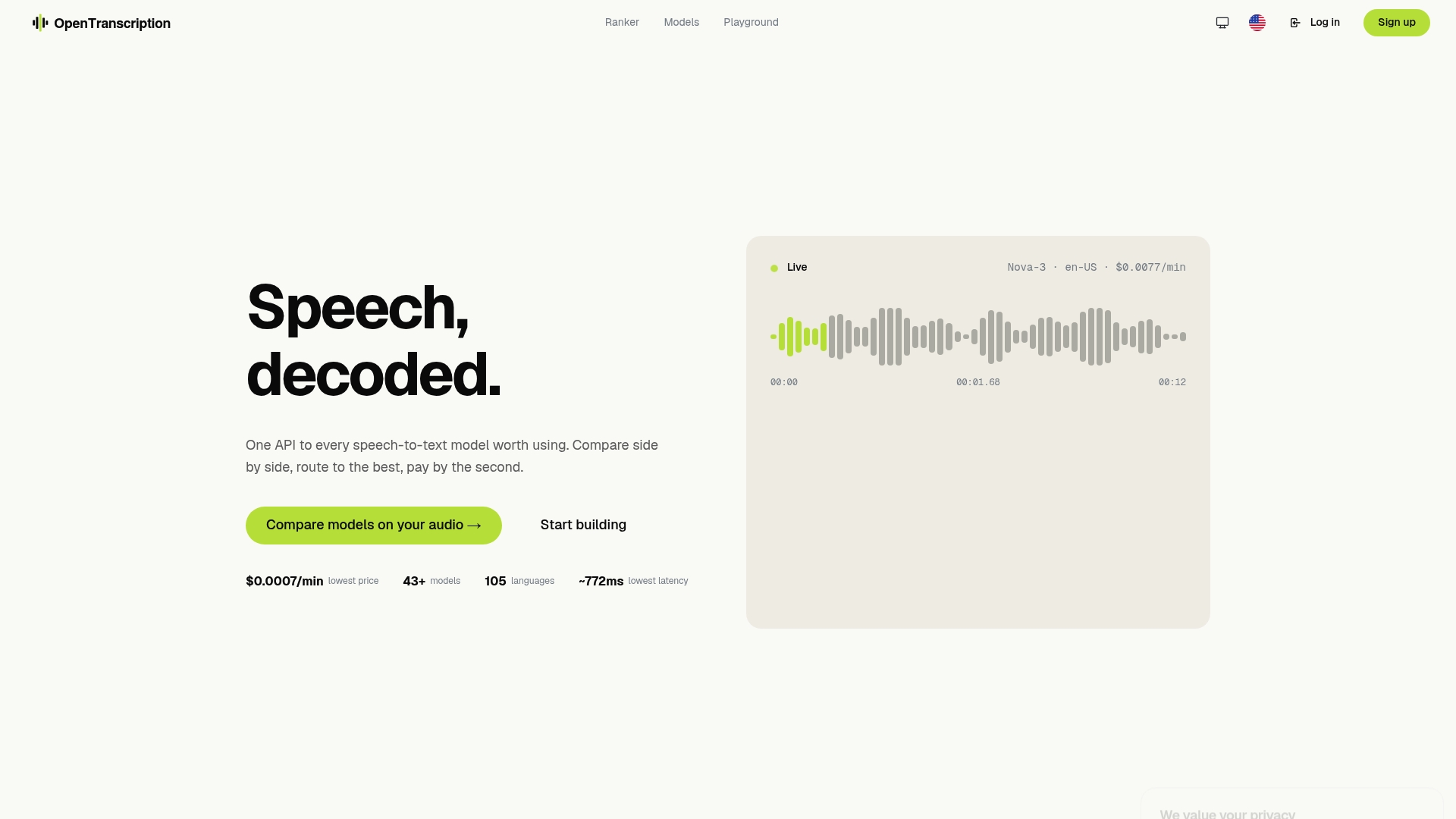
The platform’s transparent per-second billing means cost scales directly with usage, with no minimum commitment. You can run a side-by-side benchmark across 40+ models on your own meeting audio, compare WER, latency, and cost in one interface, and deploy the winning configuration without renegotiating contracts. For teams building on Google Meet at scale, that is the difference between a benchmarking process that takes weeks and one that takes an afternoon.
Start comparing models now at opentranscription.io and have a production-ready model selection before your next sprint ends.